
In the cryptocurrency market, digital asset security is binary: your funds are either fully protected, or they are vulnerable. Because blockchain transactions are irreversible, safeguarding your account from unauthorized access is the single most important step you will take as a trader.
At Tapbit, we provide institutional-grade security infrastructure, but true protection requires user participation. By default, a new account operates at a basic security tier. To fortify your portfolio, you can enable Two-Factor Authentication (2FA).
Here is your comprehensive guide to understanding and implementing 2FA on your Tapbit account today.
What is Two-Factor Authentication (2FA)?
Two-Factor Authentication is a important security protocol that adds a dynamic layer of defense beyond your standard login password. It requires two distinct forms of verification before granting access to your account or allowing withdrawals:
-
Something you know: Your standard login password.
-
Something you have: A time-sensitive, single-use code generated by an external device (like your smartphone) or sent to your personal inbox.
By implementing 2FA, you ensure that even if a malicious actor intercepts your password, they cannot breach your account without physical access to your mobile device or private email.
Phase 1: Configuring Email Authentication
Binding your email address is the first step in elevating your Tapbit account security. This ensures you receive vital alerts and withdrawal confirmation codes directly to your inbox.
Step 1: Access the Security Dashboard.
Log in to your Tapbit account. In the upper left-hand corner of the homepage, click on [Personal Center] to open your account settings, then select [Security Center].
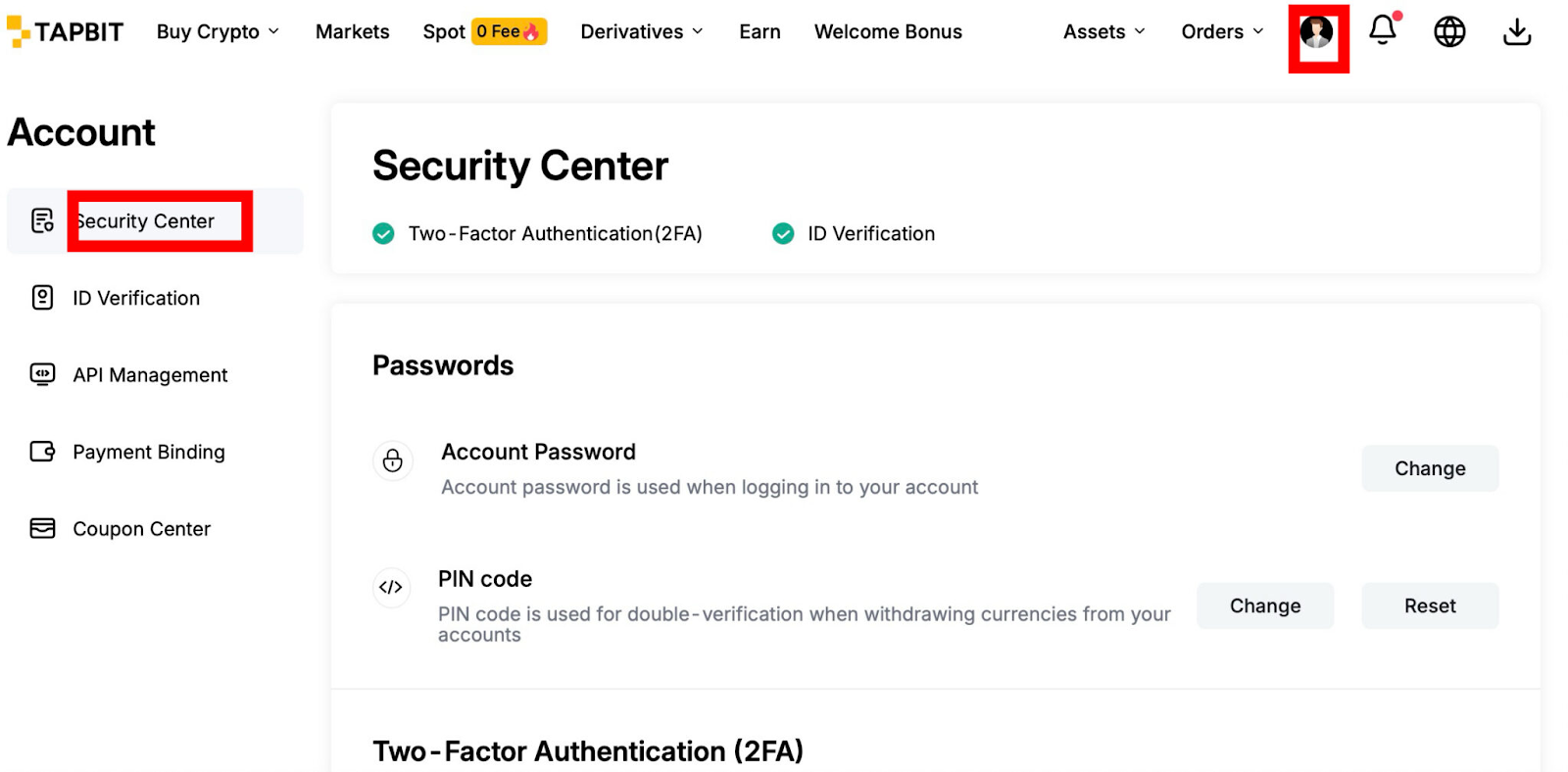
Step 2: Initiate Binding.
Locate the [Email] module and click the binding option.
Step 3: Verify.
Follow the on-screen prompts to input your secure email address. Tapbit will send a verification code to that address; enter the code on the platform to finalize the link.
Phase 2: Configuring Google Authenticator (Recommended)
While email verification is helpful, Time-based One-Time Passwords (TOTP) generated by an authenticator app are the gold standard for crypto security. They cannot be intercepted via SIM-swapping or email hacks.
Step 1: Download the Application
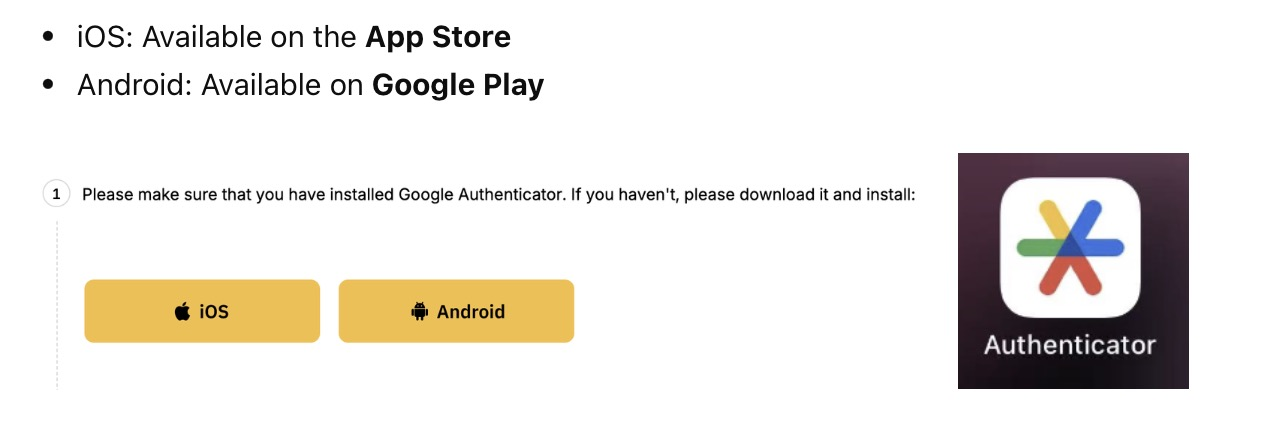
Before altering your Tapbit settings, install the authenticator application on your mobile device.
-
iOS Users: Search for and download "Google Authenticator" in the Apple App Store.
-
Android Users: Search for and download "Google Authenticator" in the Google Play Store.
Step 2: Navigate to Tapbit Settings
Return to the Tapbit platform. Click [Personal Center] > [Security Center]. Locate the [Google Authentication] tab and click [Add] to generate your unique connection credentials.
Step 3: Link the Authenticator App
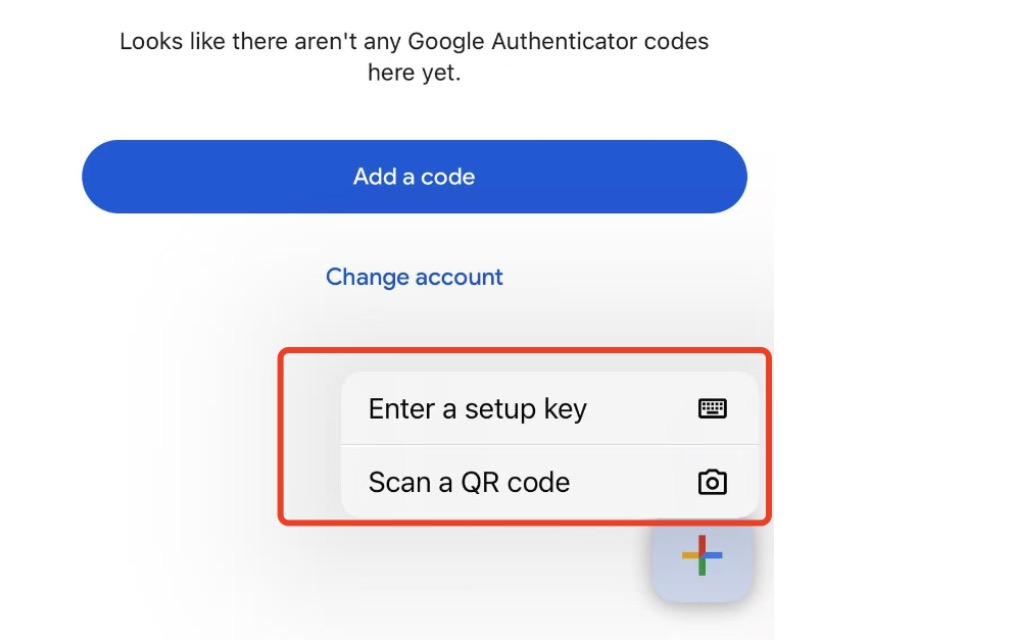
Open the Google Authenticator app on your phone and tap the [+] button in the bottom right corner. You have two options to link your Tapbit account:
-
Option A (Fastest): Select [Scan a QR code]. Use your phone's camera to scan the QR code displayed on the Tapbit setup screen.
-
Option B (Manual): Select [Enter a setup key]. Type "Tapbit" as the account name, and carefully copy/paste the alphanumeric setup key provided on the Tapbit screen. Tap "Add."
Step 4: Finalize and Verify
Once linked, your Google Authenticator app will continuously generate a 6-digit code for Tapbit. Note: The blue pie-chart icon next to the code is a timer; when it depletes, a new code is generated.
To finalize the setup, return to the Tapbit screen. You must prove ownership by entering:
-
Your Tapbit login password.
-
The verification code sent to your bound Email/SMS.
-
The live 6-digit code currently displaying in your Google Authenticator app.
Click [Submit]. Your account is now secured by industry-leading 2FA.
Secure Your Assets Today
Do not wait until your account is compromised to take security seriously. Taking five minutes to configure your authentication settings ensures your trading capital remains entirely under your control.
-
➡️ Ready to secure your account? Log in to Tapbit and navigate straight to the Security Center to enable 2FA right now.
-
➡️ Need further assistance? Reach out to Tapbit's 24/7 customer support via the live chat widget on the homepage.


