Getting a new smartphone usually means a few hours of downloading apps and logging back into your accounts. But for cryptocurrency traders, migrating your Two-Factor Authentication (2FA) app is the single most critical step of the entire process.
If you wipe your old phone before properly transferring your Google Authenticator codes, you will instantly lose access to your exchange accounts, wallets, and funds. Whether you are actively day trading or just keeping an eye on live crypto prices, being locked out of your 2FA means you are entirely locked out of the market.
To prevent unnecessary account lockouts, the Tapbit Security Desk has put together this strict, step-by-step migration protocol. Here is how to seamlessly transfer your 2FA codes to your new device while maintaining absolute operational security.
The Crypto Security Rule: Avoid the "Cloud Sync" Trap
Recently, Google updated the Authenticator app with a "Cloud Sync" feature that automatically backs up your 2FA codes to your Google Account. While this is a convenient safety net for the average internet user, it is a critical vulnerability for crypto investors.
If a bad actor compromises your Gmail password or executes a SIM-swap attack, Cloud Sync gives them immediate, remote access to your exchange 2FA codes.
For maximum asset protection, we strongly advise transferring your accounts manually using the offline QR code method. This ensures your private seed data never touches the internet.
The Pre-Transfer Checklist
Before touching any settings, physically gather what you need. Do not factory reset your old device yet.
-
Your Old Phone: It must be powered on, unlocked, and able to open the current Google Authenticator app with your codes actively generating.
-
Your New Phone: Download the official Google Authenticator app directly from the iOS App Store or Google Play Store. Do not download APKs from third-party sites.
-
Your Manual Backup Keys (Optional): If you wrote down the original 16-digit setup keys when you first enabled 2FA on Tapbit, have them nearby just in case.
Step-by-Step Offline Transfer Guide
Follow this exact sequence to securely move your dynamic verification codes (TOTP) from one device to another.
Step 1: Isolate the App (Turn Off Cloud Sync)
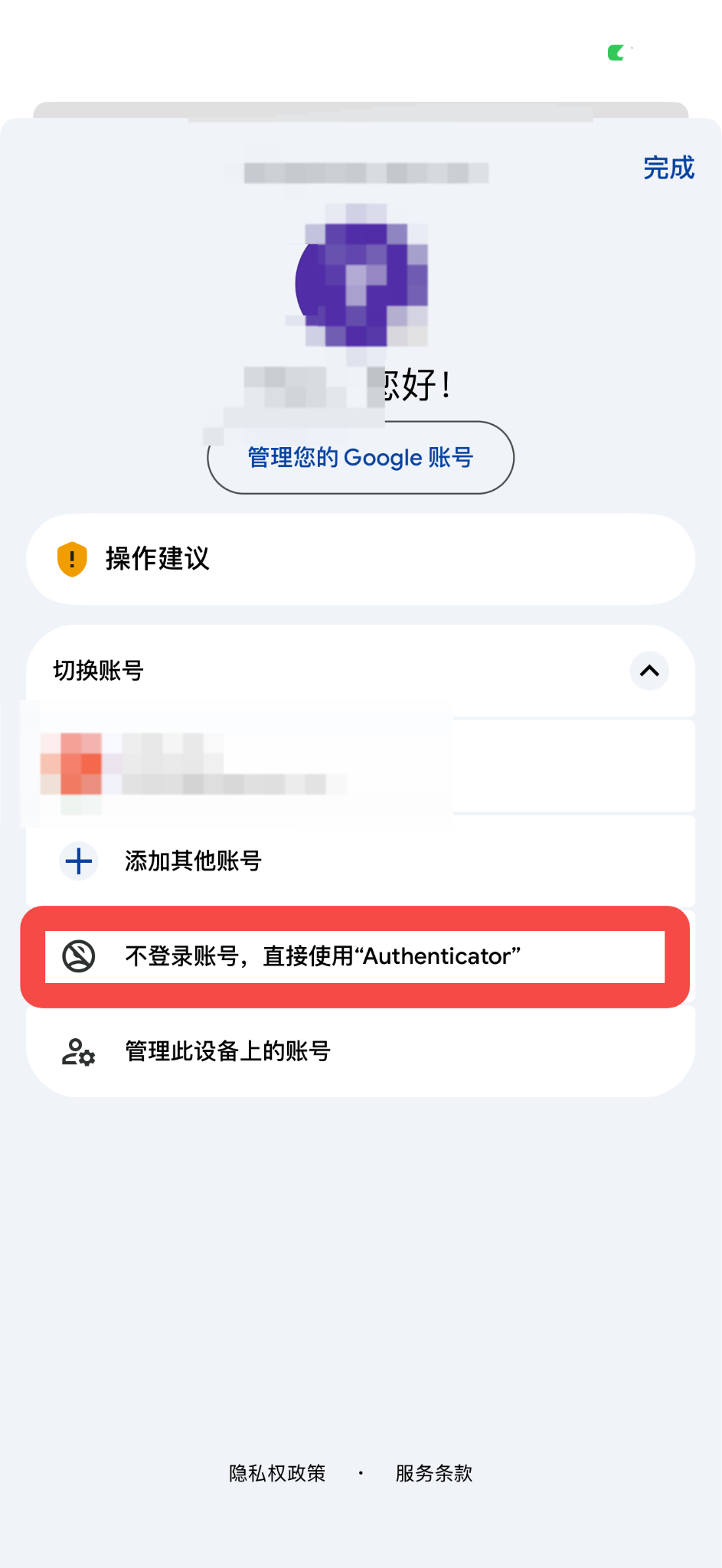
On your old phone, open Google Authenticator. Tap your profile picture in the top right corner. If you are signed into a Google account, select Use without an account. This serves the cloud connection, ensuring your export data remains strictly local to the physical devices in your hands.
Step 2: Generate the Export QR Code
Still on your old phone, tap the menu icon (the three horizontal lines) in the top-left corner.
-
Select Transfer accounts.
-
Tap Export accounts. (You will likely be prompted to verify your identity using FaceID, your fingerprint, or your device PIN).
-
A list of your 2FA accounts will appear. Select the ones you want to migrate—specifically your Tapbit login—and tap Next.
-
The screen will now display a secure QR code
 .
.
Step 3: Scan with the New Device
Pick up your new phone and open the freshly installed Google Authenticator app.
-
Tap Get Started.
-
Select Import existing accounts? at the bottom of the screen.
-
Tap Scan QR code.
-
Use the new phone's camera to scan the QR code displayed on the old phone's screen.
Your rolling 6-digit codes will instantly populate on the new device.
Step 4: The Golden Rule (Verify Before You Wipe)
Do not delete the app from your old phone yet. You must verify that the migration was successful. Open the Tapbit app or website on your computer, log in with your username and password, and input the 6-digit code generated by your new phone.
Go to your computer or mobile browser and log in to your Tapbit account with your username and password. When prompted, input the 6-digit code generated by your new phone.
Once you have successfully logged in and confirmed the new app is perfectly synced with Tapbit's servers, you can safely go back to your old phone, select Remove all exported accounts, and proceed to factory reset the old device.
Frequently Asked Questions (FAQ)
What if my old phone is already broken, lost, or stolen?
If you no longer have access to the old device and you did not physically write down your manual 16-digit backup key, the QR transfer method is impossible. You will need to initiate a manual 2FA reset through Tapbit.
Should I keep the codes running on both phones just in case?
Technically, if you scan the QR code and choose not to delete the accounts from the old phone, both devices will generate the exact same valid codes simultaneously. However, poor device management is a leading cause of compromised accounts. Best practice dictates limiting your 2FA generation to a single, tightly secured primary device.


