
In the highly volatile world of crypto futures trading, survival isn't just about finding the right entry point—it's about knowing exactly when to exit.
Whether you are stepping away from your screen or sleeping through a major market session, Take-Profit (TP) and Stop-Loss (SL) orders are your automated safeguards. As we emphasized in our foundational guide, “How To Perform Futures Trading On Tapbit?”, these tools are not optional; they are essential for securing gains and strictly managing your risk.
This guide breaks down exactly what these orders do and provides a clear, step-by-step walkthrough on how to set them up directly on the Tapbit platform.
The Core Mechanics: What Are TP and SL Orders?
Before diving into the platform interface, it is crucial to understand the strategic purpose of these two orders.
Take-Profit (TP) Orders: Your Exit Strategy for Gains
A Take-Profit order is your systematic profit-taking mechanism. Rather than gambling on a coin hitting an absolute peak and manually trying to sell, a TP order enforces a disciplined exit based on your predefined technical analysis.
How it works: It allows you to set a specific price ceiling where you want to lock in your profits. For example, if you enter a long position on Bitcoin at $100,000 and set a TP at $110,000, the Tapbit matching engine will automatically close your position the moment the price touches $110,000. You secure your $10,000 profit, completely eliminating the risk of a sudden market reversal wiping out your gains.
Stop-Loss (SL) Orders: Your Capital Defense System
A Stop-Loss order is your ultimate defense mechanism. It automatically cuts your losing trades before human emotion—like hope or panic—can cloud your judgment. The primary goal of a trader is capital preservation, and the SL order does exactly that.
How it works: Using the same example, if you buy Bitcoin at $100,000, you might set a Stop-Loss at $90,000. If the market aggressively turns against you, your position is automatically liquidated at $90,000. You accept a controlled loss, preventing your account from facing a catastrophic drawdown or forced liquidation.
Step-by-Step: How to Set TP/SL Orders on Tapbit
Setting up these parameters on the Tapbit terminal is designed to be intuitive and fast. Here is how you execute it:
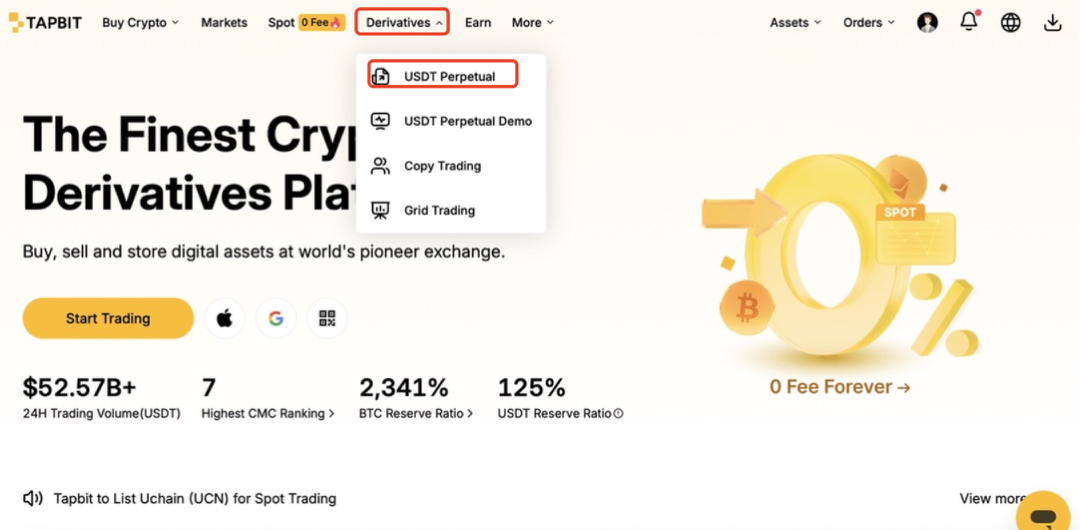
STEP 1: Access the Derivatives Interface
First, log into your Tapbit account. Navigate to the top menu, click on “Derivatives,” and select “USDT Perpetual”from the dropdown menu to enter the futures trading terminal.
STEP 2: Locate the Order Settings
You have two opportunities to set your TP/SL parameters:
-
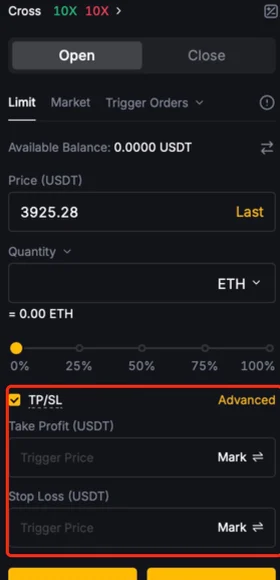
Before Opening a Trade: For the highest level of risk management, you can configure your TP/SL targets directly on the order placement panel on the right side of your screen before you execute your buy or sell order.
-
For an Active Trade: If you already have an open trade, scroll down to the "Positions" tab at the bottom of your screen. Locate the specific active position you want to manage and click the “add” button adjacent to it.

STEP 3: Configure Your Price Levels
This is where your strategy comes into play. Input your exact target price for taking profit and your hard line for stopping a loss.
Pro Tip: Don't guess these numbers. Utilize technical indicators and chart patterns—as detailed in our guide, “The Tapbit Guide to Crypto Charting: Mastering Technical Analysis and TradingView?”—to identify logical support and resistance levels for your TP and SL.
STEP 4: Review and Confirm
In futures trading, a single misplaced zero can be costly. Always double-check your parameters: verify your entry price, your trigger prices, and your total order quantities. Once you are certain the math aligns with your risk tolerance, click “Confirm” (or "Open Long / Open Short" if initiating a new trade) to activate the orders.
STEP 5: Manage and Adjust Active Orders
The market is dynamic, and your strategy might need to adapt. To modify or remove an existing TP/SL order, simply return to the Positions tab. Locate your active order and click the “Edit” icon. This allows you to trail your stop-loss upwards as you move into profit, or adjust your targets based on new market data.
Trade With Confidence and Control
Mastering Take-Profit and Stop-Loss orders on Tapbit is the fastest way to transition from a reactive gambler into a strategic trader. By automating your exits, you remove the emotional stress of watching the charts 24/7. These tools serve as your reliable partners, ensuring you aggressively protect your downside while systematically capturing profits.
Register on Tapbit today and take total control of your trading journey.
Frequently Asked Questions (FAQ)
What is the main difference between a Take-Profit (TP) and a Stop-Loss (SL) order?
A Take-Profit (TP) order is an offensive tool designed to automatically close your trade when an asset reaches a specific target price, locking in your gains. Conversely, a Stop-Loss (SL) order acts as a defensive safety net, automatically closing your position if the market moves against you to a certain level, capping your potential financial loss.
Can I set TP/SL orders after I have already opened a position?
Yes. While it is highly recommended to set them before executing a trade for maximum risk management, you can easily add them to active trades later. Simply scroll down to the "Positions" tab at the bottom of your Tapbit trading interface, locate your open position, and click the "Edit" button to configure your target prices.
Can I change my TP or SL targets once they are set?
Absolutely. Market conditions are highly dynamic, and your strategy may need to adapt. You can modify your existing TP/SL orders at any time by navigating to the "Positions" tab and clicking the "Edit" icon next to your active order. This is a common tactic for trailing your stop-loss upward to protect profits as a trade moves in your favor.


